How to Turn Off Oil Change Notification
Learn how to turn off oil change reminders across in-car settings and apps. Our step-by-step guide covers common paths, app-based controls, verification, and safety considerations to ensure you stay on top of maintenance without unwanted alerts.


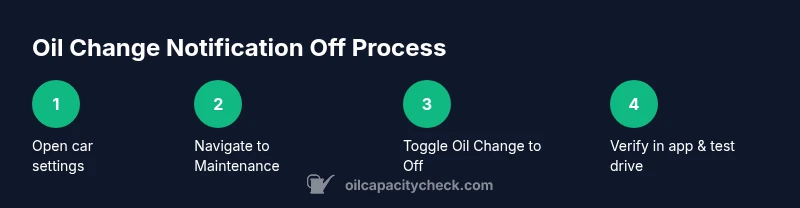
You can turn off oil change notifications by accessing the vehicle's maintenance or alerts menu in the in-car settings or the official mobile app. The exact path varies by make, but common steps are: open Settings, go to Maintenance or Alerts, select Oil Change, and choose Off or Disable. Re-check in-app alerts too.
Understanding Why You Might Turn Off Oil Change Notifications
Oil change reminders are designed to help you stay on top of maintenance, but there are situations where you might want to silence them temporarily. For instance, when you know your next oil change is already scheduled, or when you’re troubleshooting a new, non-critical warning. The Oil Capacity Check team notes that while these alerts can be helpful, they can also become noisy if you drive vehicles with multiple drivers or a shared fleet. In this guide, we’ll cover practical, safe ways to disable oil-change notifications while keeping essential maintenance on track, and we’ll explain how to re-enable them later if needed. By understanding the systems behind these alerts, you’ll minimize the chance of missing critical maintenance while reducing distraction on busy days.
According to Oil Capacity Check, the goal is to strike a balance between reducing noise and preserving essential reminders. We’ll show you how to disable temporarily and how to verify that alerts are truly off. This approach helps car owners and DIY enthusiasts manage notifications without compromising engine health or service schedules.
Common Places to Find Notification Settings
Most modern vehicles place oil change reminders in a few predictable locations, but the exact path depends on the make and model. In-car dashboards often house a Settings or Notifications menu where you can toggle maintenance alerts. Infotainment systems may present a Maintenance tab under the vehicle or apps section. If you use a manufacturer app, those alerts can exist both in the car and in the app. For some vehicles, there are multiple reminder channels: odometer-based maintenance, time-based alerts, and calendar reminders from connected apps. In short, start where you usually interact with alerts: the car’s Settings, the infotainment menu, and the official mobile app. If you’re unsure, consult the owner’s manual or your dealership’s service portal for model-specific instructions.
By locating all notification channels, you’ll avoid hiding an alert in one place while another reappears in another app or the vehicle’s instrument cluster. This holistic approach is recommended by Oil Capacity Check to ensure consistent behavior across devices.
In-Car Settings: Step-by-Step Path (Generic)
For many vehicles, turning off an oil change notification follows a general pattern. Start by turning on the car and navigating to the Settings or Vehicle menu. From there, locate the Maintenance, Alerts, or Service section. Within that area, select Oil Change or Service Interval, and choose Off, Disable, or Never. Some cars require you to confirm the change with a secondary prompt. If your system provides sub-categories (like “Reminders” vs. “Oil Change only”), select the Oil Change option specifically. After disabling, exit the menus and perform a quick check: drive a short distance or restart the vehicle to ensure the alert does not reappear. If needed, you may also need to reset the maintenance countdown to reflect your preferred schedule.
Note that some OEMs require a dealer reset for certain changes. If you encounter a “cannot disable” message, contact your dealer or use the manufacturer’s official support portal for model-specific steps.
Using Manufacturer Apps to Control Reminders
Many manufacturers offer companion apps that mirror in-car settings. Open the app and sign in with the same account used for your vehicle. Look for sections labeled Maintenance, Alerts, or Notifications. Some apps show a toggle for Oil Change reminders; switch it to Off or Disable. In apps that rely on connected services, you may also need to disable push notifications at the system level on your phone to stop the app from delivering alerts. If multiple drivers share the same vehicle profile, apply changes to the relevant profile or vehicle, and consider creating separate user profiles to tailor reminders per driver. After changes, re-sync the app with the vehicle to ensure consistency across devices.
Using the app provides a backup method and can be faster if you typically interact with notifications through your phone.
Safety and Maintenance Considerations
Disabling oil change notifications can reduce distractions, but it also raises the risk of missing scheduled maintenance. This is especially important if you’re using odometer-based reminders or if your car stores service intervals based on oil life calculation. The Oil Capacity Check guidance emphasizes that you should only turn off reminders when you have an explicit plan to track maintenance through alternative methods (calendar reminders, a maintenance log, or a custom service schedule). If you drive a used car with ambiguous maintenance history, consider keeping at least a basic alert enabled or setting a distant threshold (e.g., disable only for a specific period or odometer range) to avoid missing critical service.
Always re-enable reminders if you’re unsure about your maintenance plan, or if the vehicle will be used by someone else who depends on standard alerts.
How to Verify The Notification is Off
Verification is essential to ensure your changes stuck. Start by restarting the vehicle and checking the infotainment screen for any oil-change alert. Take a short test drive of 10–15 minutes to see if the alert triggers during normal operation. If you still receive a notification, go back to Settings and check for any residual reminders or alternative channels (app, odometer-based reminders, calendar integrations). It’s helpful to clear any pending alerts by performing a soft reset of the infotainment system if your vehicle supports it. Finally, check the companion app again to confirm that the Oil Change reminder has been disabled there as well. Oil Capacity Check recommends this multi-channel check to confirm consistency across platforms.
Special Scenarios: Shared Cars, Fleet, or Rentals
When multiple people use the same vehicle, it’s common for different reminder settings to conflict. If you’re the primary driver but share access with family members, discuss a unified approach for reminders or create separate user profiles within the car’s settings. Fleets or rental cars may have centralized maintenance management tools; disable reminders only if you know the central maintenance schedule will still govern upkeep. In all cases, document the changes and ensure any service intervals are still tracked by a separate system (fleet software, calendar reminders, or a maintenance log). This approach prevents misalignment between the vehicle’s reminders and actual service needs.
If you return the vehicle to a loaner program, always recheck reminders after you return to ensure you haven’t inadvertently altered the default settings for subsequent users.
Re-enabling Reminders Later: A Simple Reversal
If you decide later that you want reminders back, the reversal is straightforward. Return to the same path you used to disable them. Toggle Oil Change reminders back to On or Enable, and save the changes. Some vehicles require re-indexing the maintenance schedule or restarting the system to reflect the updated setting. After re-enabling, verify that the reminder reappears by driving a short distance or restarting the vehicle. If the reminder does not reappear, recheck both the car’s settings and the companion app to ensure synchronization. Keeping a simple log of changes can help you remember when you last updated these settings and whether you intend to keep reminders active.
Re-enabling is a good habit after a maintenance event or if you’re unsure about your future driving plans.
What If Your Car Has No In-Car Option? Alternate Methods
Some vehicles or aftermarket systems may not provide a direct in-car toggle for oil change notifications. In these cases, you may need to rely on the app, a connected service, or a dealer tool to modify reminder behavior. Another option is to adjust the maintenance interval to a more conservative setting (for example, set a longer interval, if the system allows) or to switch to a calendar-based reminder outside the car. While this requires a bit more manual tracking, it ensures you aren’t overwhelmed by alerts while maintaining awareness of when service is due. Always consult the owner's manual or manufacturer support if you’re unsure about the capabilities of your specific model.
This approach keeps essential maintenance on schedule while giving you control over how and when reminders appear.
Quick-Pro Checklist for Turning Off Reminders
- Identify all possible reminder channels: in-car, app, and any connected services.
- Access the vehicle’s Settings or Maintenance menu and locate Oil Change alerts.
- Disable or turn off the Oil Change notification and confirm the change when prompted.
- Check the manufacturer app and disable reminders there as well.
- Verify the setting by restarting the vehicle and completing a short test drive.
- Re-enable reminders later if maintenance becomes uncertain or if the car is shared.
How to Turn Off Oil Change Notification: Quick Reference
By following the steps above, you can silence oil-change alerts without losing track of maintenance. Always verify across all channels and keep a maintenance log to avoid missing service.
Tools & Materials
- Smartphone with official vehicle app installed(Needed to disable app-based reminders.)
- Active account credentials for the vehicle app(Must be able to sign in to your account.)
- Vehicle access (key fob or driver’s seat)(You may need to navigate in-car menus.)
- Reliable internet connection(Needed for app changes and synchronization.)
- Owner’s manual (optional for model-specific steps)(Keep as a quick reference.)
Steps
Estimated time: 25-40 minutes
- 1
Open vehicle Settings
Power the car on and access the Settings menu from the instrument cluster or center console. This is the gateway to configuring alerts and reminders. Why: You must access the primary controls to disable reminders.
Tip: If your screen prompts for a PIN, enter the vehicle’s standard access code to proceed. - 2
Navigate to Maintenance/Alerts
Find the Maintenance, Service, or Alerts section. The exact name varies by manufacturer, but it generally groups all service reminders in this area. Why: This is where Oil Change notifications are managed.
Tip: If you see multiple categories (e.g., Tire, Battery), ensure you select Oil Change specifically. - 3
Select Oil Change notification
Choose Oil Change from the list of reminders and confirm you want to modify its status. Some systems use a toggle, others use a dropdown with On/Off choices. Why: Targeted selection avoids turning off other critical reminders.
Tip: Take a screenshot of the before state in case you need to revert. - 4
Disable the reminder
Set the Oil Change alert to Off, Disable, or Never depending on your interface. Confirm the change when prompted by the car’s UI. Why: This step is the actual deactivation.
Tip: If there is a secondary confirmation, complete it to ensure the setting sticks. - 5
Exit and restart the system
Exit the settings menu and restart the infotainment system or vehicle power cycle to ensure changes are applied. Why: Some systems apply changes only after a reset.
Tip: A full system restart can prevent stale warnings from returning. - 6
Check app settings
Open the manufacturer app and locate the Notifications or Maintenance section. Confirm Oil Change reminders are Off there as well. Why: Apps can mirror car settings or have independent controls.
Tip: Toggle app notifications off and then back on to refresh the connection if needed. - 7
Test with a short drive
Take a brief drive or restart the car and monitor for any oil-change notifications during normal operation.
Tip: If you hear a chime or see a warning, re-check both in-car and app settings. - 8
Document and monitor
Note the change in your maintenance log or calendar and set a reminder to review status in a few weeks. Why: To ensure you don’t miss future maintenance unintentionally.
Tip: Keep a simple calendar reminder for the re-check.
People Also Ask
Is it safe to turn off oil change reminders?
Yes, it can be safe if you have an explicit plan to track maintenance through other means. However, you risk missing oil changes if you rely solely on the reminders. Use this option only when you’re confident in your maintenance schedule.
Yes, it can be safe if you have another plan to track maintenance; otherwise you risk missing oil changes.
Will turning off reminders affect safety systems?
Disabling reminders typically only affects maintenance alerts. It should not impact critical safety systems, but you may miss maintenance indicators if the car uses maintenance-based warnings for service intervals.
It usually only affects maintenance alerts, not safety systems, but you might miss service indicators.
How do I re-enable oil change reminders?
Return to the same settings path, switch the Oil Change notification back to On or Enable, and confirm. Then verify in both the car and the app that the reminder is active again.
Go back to the settings, turn Oil Change alerts back on, and check both the car and app.
What if my car has no oil change option in settings?
Some vehicles lack a direct toggle. In that case, disable reminders via the app or central fleet tool, or adjust the maintenance interval to a non-alerting setting if available. Check the manual for model-specific steps.
If there’s no in-car option, use the app or central tools, or adjust the interval if possible.
Should I turn off reminders for a rental or fleet vehicle?
For rental or fleet vehicles, coordinate with the fleet manager to avoid conflicting maintenance reminders. Personal reminders in a rental car can create confusion for other users.
Coordinate with the fleet manager; personal reminders can confuse other users.
Watch Video
The Essentials
- Turn off reminders only when you have a clear tracking plan.
- Check both in-car and app notifications for consistency.
- Verify the change with a short test drive or restart.
- Re-enable reminders if maintenance becomes uncertain.
- Document changes to avoid future confusion.